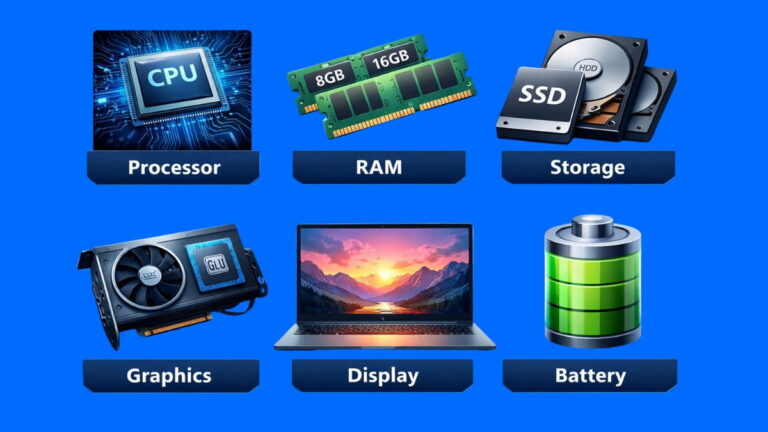

At Rentio, we regularly purchase laptops for our rental inventory. While evaluating hundreds of business laptops, refurbished machines and different generations of hardware, one specification repeatedly requires careful consideration: RAM. A laptop may have a powerful processor, a fast SSD and an attractive price, but if its memory configuration does not match the customer’s workload, the machine may not deliver the experience we expect from a professional rental laptop.
Over time, we have seen how differently RAM requirements can vary between users. An employee working primarily with email, documents and browser-based applications may be perfectly comfortable with a modest laptop configuration, while a software developer running an IDE, databases, Docker containers and multiple browser windows can have very different requirements. A video editor, engineer or professional working with virtual machines may need considerably more memory again.
These practical experiences are one reason we believe RAM deserves more attention than simply looking at the number printed in a laptop specification. 8GB, 16GB and 32GB are not good or bad configurations by themselves. Their suitability depends on what the laptop is being used for, how many applications are running simultaneously, whether the memory is upgradeable and how long the user expects the laptop to remain suitable for the workload.
This guide is designed for anyone who uses a laptop—whether you are buying a new computer, choosing a refurbished machine, upgrading an existing laptop, selecting computers for employees or deciding what configuration to rent. We will explain what RAM is, how it works, how much you actually need, what DDR4 and DDR5 mean, how memory speed and channels affect performance, and what to check before choosing a laptop.
Understanding RAM also helps prevent a common purchasing mistake: paying for specifications that do not solve your actual problem while overlooking the specifications that do. A laptop with more RAM is not automatically better for every user, just as a laptop with the latest memory generation is not automatically the right choice for every workload.
I am sure, by the end of this guide, you should be able to look beyond a simple “8GB vs 16GB vs 32GB” comparison and evaluate RAM in the context of the entire laptop, your applications, your working habits and your expected future requirements.
What Is RAM?
RAM stands for Random Access Memory. It is a form of high-speed, volatile memory used by a computer to hold information that the processor and applications need while the system is operating.
The word “random” refers to the fact that memory locations can generally be accessed directly rather than having to read information sequentially from beginning to end. This makes RAM fundamentally different from traditional storage devices such as hard disk drives and SSDs, which are designed primarily for persistent data storage.
RAM is called volatile memory because its contents are lost when power is removed. If you open a document and edit it, the operating system and application may keep information about that document in RAM while you work. Saving the document writes it to persistent storage, such as an SSD, so it remains available after the laptop is shut down.
A useful way to understand RAM is to think of your laptop’s SSD as a filing cabinet and RAM as the desk where you work. A larger desk allows you to keep more documents, tools and reference material immediately available. A larger amount of RAM similarly gives the operating system and applications more working space.
The analogy is not technically exact, because computer memory systems are considerably more complex, but it provides a useful starting point for understanding why RAM capacity affects multitasking.
Why Does RAM Matter in Laptops?
RAM matters primarily because modern computing involves simultaneous workloads. Even when you appear to be using one application, the operating system is managing background services, drivers, security tools, browser processes, synchronization applications and other tasks.
If your workload fits comfortably within the available memory, the system can keep the information it needs readily accessible. If the workload exceeds available physical memory, the operating system can use storage as part of its virtual-memory mechanism. Because SSD storage is much slower than RAM for this purpose, excessive memory pressure can contribute to slower responsiveness.
This does not mean that high RAM usage automatically indicates a problem. Modern operating systems deliberately use available memory for useful purposes such as caching. A laptop showing substantial RAM usage can still be operating normally. What matters is whether the system has sufficient memory for the workload and remains responsive.
RAM and Multitasking
Consider a person working with a browser containing 20 tabs, Microsoft Excel, Word, Teams, Outlook and a PDF reader. Each application may require memory, and individual applications may have many processes or documents open.
Moving from 8GB to 16GB RAM can make a meaningful difference for this kind of workload when the original configuration was regularly running short of memory. The benefit is not simply that “16GB is twice as fast.” RAM capacity and processing speed are different concepts. More capacity provides additional working room; it does not directly double processor performance.
RAM and Application Performance
An application can require memory for its interface, active documents, cached data, processing operations and other internal functions. The amount required varies substantially between applications and workloads.
A simple text document may require relatively little memory, while a large spreadsheet, professional photo-editing project, development environment or complex video project can require considerably more. Consequently, recommendations such as “everyone needs 16GB” should be treated as general guidance rather than a universal technical rule.
How Does RAM Work?
When you launch an application, the operating system loads the information the application needs into working memory. The processor can then access relevant instructions and data through the computer’s memory hierarchy.
A simplified sequence looks like this:
Storage → RAM → CPU
An application is stored on your SSD. When you launch it, relevant data and instructions are loaded into memory. The CPU then processes instructions and data, using the memory subsystem to access information required during operation.
The actual architecture is more complicated. Modern processors have multiple levels of cache, integrated memory controllers and sophisticated mechanisms for moving and managing data. RAM is therefore one part of a broader memory hierarchy rather than simply a “middle step” between the SSD and CPU.
What Happens When You Open Several Applications?
Suppose you open a browser, Excel, Photoshop and a video-conferencing application. Each program may require memory for its processes and active data. The operating system manages these allocations and attempts to keep frequently needed information available.
If enough physical RAM is available, the system can accommodate the combined workload more comfortably. If memory pressure becomes high, the operating system may move less-active data to storage and retrieve it when necessary. This is useful as a safety mechanism, but it is not a substitute for having enough physical RAM for a demanding workload.
What Happens to RAM When You Shut Down?
Because conventional RAM is volatile, its active contents disappear when power is removed. Files that have been saved to an SSD remain because SSD storage is non-volatile.
This is why closing a laptop does not erase your saved documents. Your files live on persistent storage, while RAM is primarily concerned with the computer’s active working state.
Understanding RAM Capacity
RAM capacity is normally expressed in gigabytes (GB). Common laptop configurations include 8GB, 16GB and 32GB, with higher-capacity configurations available for professional systems.
Capacity answers one important question:
How much working memory is available?
It does not answer questions about memory speed, latency, architecture or upgradeability. Two laptops can both have 16GB of RAM while using different memory technologies and configurations.
4GB RAM
4GB is now a very limited amount of memory for a general-purpose modern laptop. Microsoft lists 4GB as the minimum RAM requirement for Windows 11, but a minimum operating-system requirement should not be interpreted as a recommendation for comfortable multitasking.
A 4GB machine may be suitable for narrowly defined lightweight tasks on an appropriate operating system, but users who expect several modern applications and browser tabs to remain open should generally consider a higher-capacity configuration.
8GB RAM
8GB has historically been a common entry-level laptop configuration, in fact this is the most in demanded at Retnio by our rental clients. It can be adequate for basic browsing, documents, email, streaming, light office work and relatively modest multitasking.
The limitation appears when workloads become more demanding. A user who keeps numerous browser tabs open while running several desktop applications may encounter memory pressure sooner than someone performing the same tasks individually.
For a new laptop intended for several years of general-purpose use, 8GB should therefore be considered a basic configuration rather than a universal recommendation.
16GB RAM
16GB has become a strong general-purpose capacity for many laptop users. It provides substantially more working room than 8GB and is appropriate for a wide range of office, professional, development and multitasking workloads.
For many business users, students, developers, professionals and general users who want comfortable multitasking, 16GB is a practical target. It also gives more headroom for future software requirements than an entry-level configuration.
32GB RAM
32GB is appropriate when workloads regularly involve heavy multitasking or memory-intensive applications. Software developers running virtual machines and containers, video editors working with complex projects, engineers using demanding applications and power users with many concurrent workloads can benefit from this capacity.
The key point is that 32GB is not automatically “faster” than 16GB. If your workload uses only 8GB, moving to 32GB does not automatically make every application four times faster. The extra capacity becomes valuable when the workload actually needs it.
64GB RAM and Beyond
64GB and higher capacities are generally aimed at demanding professional workloads, specialized applications, extensive virtualization, large datasets, high-end content creation and workstation-class requirements.
The appropriate maximum is also determined by the laptop’s hardware. Memory support varies by processor and system design. Intel’s current documentation, for example, shows that supported memory types, maximum capacity, channels and bandwidth vary across different laptop processor families.
Installed RAM vs Usable RAM
The amount printed in a laptop’s specification may not exactly match the amount shown as available to applications.
Some memory may be reserved by the operating system, firmware or hardware. Integrated graphics can also use system memory rather than having separate dedicated VRAM. As a result, a laptop advertised with 16GB may show somewhat less available memory in the operating system.
That difference does not necessarily mean that the laptop has defective RAM.
Can You Have Too Much RAM?
Yes, in the practical sense that you can purchase substantially more RAM than your workload needs.
Having additional RAM is not harmful simply because it is unused, but it may provide little performance benefit if your applications never approach the available capacity. For that reason, choosing RAM should be based on current workload, expected future use, software requirements and upgradeability, rather than selecting the largest number available.
How Much RAM Does a Laptop Need?
There is no single RAM capacity that is correct for every laptop user. The right amount depends on what you do, how many applications you run simultaneously, how large your projects are and how long you expect to keep the laptop.
A useful general framework is:
| Laptop workload | Practical RAM starting point |
|---|---|
| Basic browsing and light computing | 8GB |
| Office and general business use | 8–16GB |
| Heavy multitasking | 16GB |
| Programming and development | 16–32GB |
| Gaming | 16–32GB |
| Graphic design | 16–32GB |
| Video editing | 16–32GB+ |
| CAD, engineering and 3D work | 32GB+ |
| Multiple virtual machines | 32–64GB+ |
| Specialized professional workloads | 64GB+ |
These are practical guidelines which we use at Rentio for measuring customer RAM requirements. Actual requirements vary by application version, project size, operating system, processor, graphics architecture and user behavior.
RAM for Everyday Browsing
For basic browsing, email, online services and occasional documents, 8GB can be sufficient on a suitable modern laptop. However, browser usage can become memory-intensive when many tabs, web applications and extensions remain active.
Someone who uses a browser as their primary work environment may therefore benefit from 16GB even if they never use traditional professional software.
RAM for Office Work
Office work typically includes applications such as word processors, spreadsheets, presentation software, email, browser-based applications and video conferencing.
An 8GB laptop can handle straightforward office workloads, while 16GB offers greater headroom for users who regularly multitask. Large spreadsheets, multiple browser windows, collaboration software and background applications can make additional memory more valuable.
RAM for Programming
Programming requirements vary dramatically. A person writing small scripts may be comfortable with 8GB. A professional developer running an IDE, multiple browser tabs, databases, local development servers, containers, emulators or virtual machines may benefit considerably from 16GB or 32GB.
For development teams, RAM should be selected according to the complete development environment, not merely the size of the source code. A small codebase can still require substantial memory if it depends on multiple services and virtualized environments.
RAM for Video Editing
Video-editing applications can consume substantial memory depending on project complexity, resolution, codecs, effects, timelines and other applications running simultaneously.
Again, like software development, it may depend on the application used for video editing but for basic, 16GB may be workable on a suitable system. More complex professional workflows can justify 32GB or more. However, RAM is only one component of an editing workstation: CPU performance, GPU capabilities, storage speed and sustained thermal performance also matter.
RAM for Gaming
For many modern PC games, 16GB is a sensible general-purpose target, while 32GB can provide additional headroom for demanding games, multitasking and future use.
Gaming performance cannot be determined by RAM capacity alone. The GPU, CPU, game settings, resolution, storage and memory configuration all influence the experience. A laptop with 32GB RAM but a weak GPU will not necessarily outperform a 16GB laptop with a much stronger graphics processor.
Types and Generations of RAM
This is an important part to understand. Laptop RAM has evolved through several generations. Numbers in GB are not enough to understand the strength of a RAM. Terms such as DDR3, DDR4, DDR5, LPDDR4X, LPDDR5 and LPDDR5X become important when comparing systems.
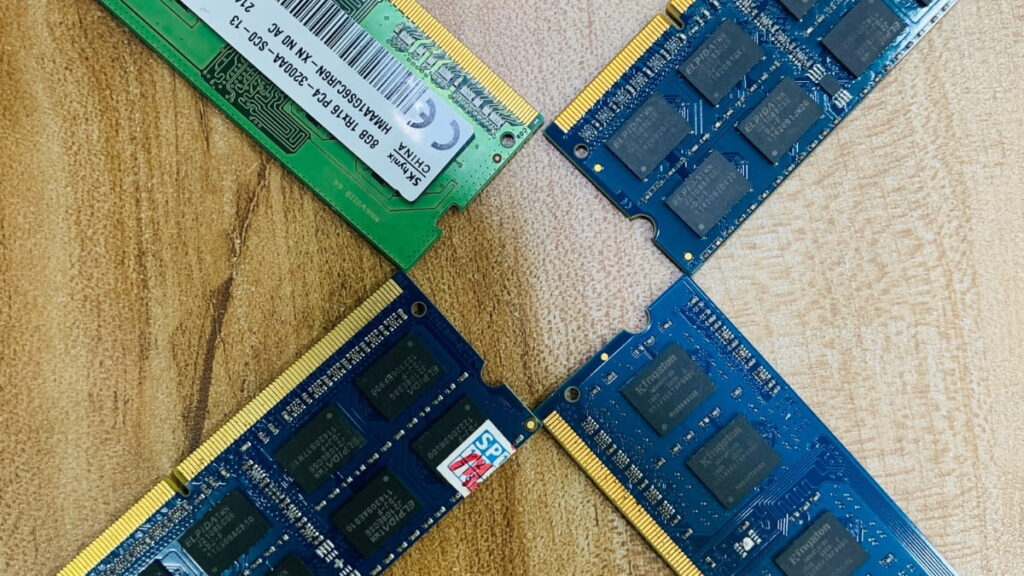
DDR stands for Double Data Rate. Each new generation generally introduces changes to signaling, bandwidth, power characteristics and supported speeds. Importantly, newer generations are not simply interchangeable upgrades.
DDR3
DDR3 is an older memory generation that appeared in many previous-generation laptops. It remains relevant when upgrading or maintaining older computers, but it is not normally the preferred technology for a new laptop purchase.
DDR4
DDR4 became widely adopted in laptops and desktops and remains common in many existing systems. Its supported speeds and configurations vary by platform.
A DDR4 laptop cannot simply accept a DDR5 module because the memory technologies are electrically and physically different. The laptop’s processor and motherboard determine which memory technology is supported.
DDR5
DDR5 is a newer generation designed to provide higher memory bandwidth and other architectural improvements compared with DDR4.
However, “DDR5” alone does not guarantee a particular performance level. Capacity, speed, memory configuration, processor architecture and workload all influence real-world performance.
LPDDR
LPDDR means Low Power Double Data Rate memory. It is widely used in thin-and-light laptops and other mobile devices where power efficiency and compact design are important.
LPDDR memory is often integrated directly into the system rather than installed as conventional removable SO-DIMM modules. This can help manufacturers design thin systems, but it can also limit future upgrade options.
DDR4 vs DDR5
The choice between DDR4 and DDR5 is usually determined by the laptop platform rather than the buyer independently selecting any RAM module they want.
When comparing two laptops, look beyond the DDR generation. Consider:
- Total capacity
- Memory speed
- Number of channels
- Upgradeability
- Processor
- GPU
- Overall system design
Intel’s documentation illustrates why this matters: supported memory types, maximum capacity and maximum speed vary by processor family and specific processor model.
RAM Speed Explained
RAM speed describes how quickly the memory subsystem can transfer data. Modern specifications commonly use MT/s, meaning million transfers per second, although laptop marketing materials sometimes continue to use “MHz” when describing memory speed.
For example, DDR5-5600 refers to a memory data-transfer rate of 5600 MT/s. The terminology can be confusing because the actual clock frequency and effective data-transfer rate are not identical.
MHz vs MT/s
For DDR memory, data is transferred multiple times per clock cycle. As a result, the effective transfer rate is commonly expressed in MT/s rather than simply MHz.
When comparing laptops, it is therefore better to use the manufacturer’s stated memory specification rather than assuming that every number labeled “MHz” represents the actual memory clock frequency.
Does Faster RAM Make a Laptop Faster?
Sometimes, but the improvement depends on the workload and platform.
Memory speed can influence workloads that are sensitive to memory bandwidth or latency. Integrated graphics can also benefit from faster system memory because they may use system RAM rather than dedicated graphics memory.
However, increasing RAM speed from one supported configuration to another will not necessarily produce a dramatic difference in ordinary office work. If a laptop is struggling because it has insufficient RAM capacity, adding capacity can be more meaningful than pursuing a small increase in memory speed.
Memory Bandwidth
Memory bandwidth describes how much data the memory subsystem can transfer over time. Higher bandwidth can be valuable for workloads that move large amounts of data.
Intel publishes maximum memory bandwidth alongside supported memory types and channels for its processors, demonstrating that memory bandwidth is a platform-level specification rather than an isolated property of a RAM module.
RAM Latency
RAM performance is not determined by speed alone. Latency describes how long it takes for certain memory operations to begin returning the requested data, and memory specifications may include timings such as CAS latency or CL.
This creates a common misunderstanding: a higher advertised transfer rate does not automatically mean every memory operation is faster in every circumstance.
For everyday laptop selection, however, most users should prioritize sufficient capacity and platform compatibility before worrying about small differences in memory timings. A system with insufficient RAM will not become comfortable simply because its memory has excellent latency.
Speed vs Latency
Memory speed and latency interact. Comparing them requires looking at the complete memory specification rather than one number in isolation.
For general laptop buyers, a practical priority is:
Capacity → compatibility → supported memory configuration → speed → finer timing differences.
That order is not an absolute rule for specialized benchmarking, but it is a sensible approach for most people choosing a laptop for real-world use.
RAM Channels
A memory channel is a communication path between the processor’s memory controller and system memory. A laptop may use a single-channel or multi-channel configuration depending on its hardware and memory arrangement.
Single-Channel RAM
In a single-channel configuration, the system uses one memory channel. This can limit available memory bandwidth compared with an equivalent multi-channel configuration.
Dual-Channel RAM
Dual-channel operation allows the system to use two memory channels, potentially increasing available memory bandwidth.

A simplified example is comparing:
1 × 16GB
with
2 × 8GB
Both configurations provide 16GB total capacity, but their performance characteristics can differ depending on the laptop platform and whether both modules operate in the intended dual-channel configuration.
The difference can be particularly relevant to systems using integrated graphics, because the GPU may share system memory bandwidth with the CPU.
Is Dual-Channel Always Better?
Not every laptop allows the user to choose the channel arrangement. Some systems have soldered memory, while others use one soldered module plus an expansion slot. Modern integrated memory designs can also work differently from traditional upgradeable systems.
Therefore, check the specific laptop’s technical documentation rather than assuming that adding a second module will always produce a particular result.
Laptop RAM Form Factors
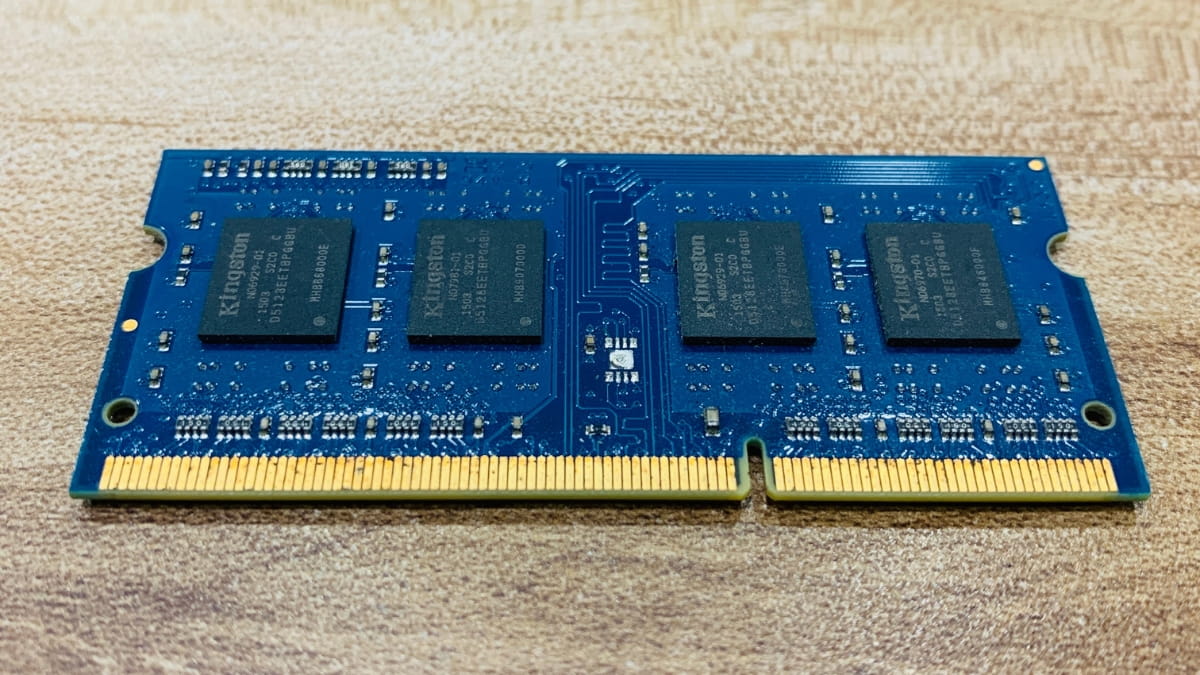
Traditional upgradeable laptop memory commonly uses SO-DIMM, a smaller memory-module form factor designed for compact computers.
Desktop computers commonly use full-size DIMMs, while many laptops use SO-DIMMs when they have removable memory modules. However, increasingly thin laptops may use soldered LPDDR or other integrated memory designs instead.
SO-DIMM
SO-DIMM modules can be removed and replaced when the laptop is designed for user-accessible memory. The exact module type must match the system’s supported memory technology.
A SO-DIMM is not automatically compatible with every laptop simply because it physically fits. The system’s processor, motherboard and firmware determine supported memory types and capacities.
Soldered Memory
Soldered memory is physically attached to the motherboard. It can help manufacturers design compact systems, but it normally cannot be upgraded in the same way as a removable SO-DIMM.
This is one reason RAM capacity should be considered carefully before buying a laptop when the system has no upgradeable memory.
Soldered vs Upgradeable RAM
One of the most important questions when choosing a laptop is not only “How much RAM does it have?” but also:
Can the RAM be upgraded later?
An 8GB laptop with an accessible upgrade slot can have a different long-term value proposition from an 8GB laptop with permanently soldered memory.
Advantages of Soldered RAM
Soldered memory can help manufacturers build thinner and more compact laptops. It can also allow the system designer to optimize the memory implementation for the platform.
The trade-off is reduced flexibility. If the memory is permanently attached and the laptop has no expansion option, the installed capacity is effectively the capacity you will have for the life of that machine.
Advantages of Upgradeable RAM
Upgradeable memory provides flexibility. A laptop might initially be configured with 8GB or 16GB and later receive additional memory if the system supports it.
This can be particularly valuable for business users whose workload changes over time. A laptop initially used for basic office work may later be assigned to a developer or analyst with substantially greater memory requirements.
How to Check Whether RAM Is Upgradeable
Check the laptop manufacturer’s service manual or technical specifications. Look for:
- Number of memory slots
- Soldered memory
- Maximum supported memory
- Supported memory type
- Supported speed
- Whether a slot is currently occupied
Do not rely solely on the laptop’s advertised RAM capacity.
RAM Compatibility
RAM compatibility is more complicated than buying a module with the same capacity.
The laptop must support the relevant memory generation, physical form factor, speed range, capacity and configuration. Processor limitations can also matter. Intel specifically recommends checking the processor’s specifications for maximum memory size, memory type and channels, and checking the computer or motherboard manufacturer’s documentation for actual system compatibility.
Can DDR4 and DDR5 Be Mixed?
No. DDR4 and DDR5 are different memory technologies and are not interchangeable in a conventional laptop memory slot.
A laptop designed for DDR4 requires compatible DDR4 memory. A laptop designed for DDR5 requires compatible DDR5 memory.
Can 8GB and 16GB RAM Be Used Together?
Sometimes, yes, but it depends on the laptop and memory configuration.
A laptop with one 8GB module and one 16GB module may operate with 24GB total memory, but the exact behavior and channel configuration depend on the platform. Some systems may use an asymmetric configuration in which part of the memory operates differently from the remainder.
The practical lesson is simple: check the manufacturer’s specifications before mixing modules.
Can Different RAM Speeds Be Mixed?
Compatible modules with different rated speeds can sometimes operate together, but the system may run them at a common supported speed rather than allowing each module to operate at its maximum advertised rate.
For a new upgrade, matching specifications is generally the cleaner approach.
RAM and Laptop Performance
RAM influences performance most noticeably when it affects whether the system can comfortably accommodate the active workload.
Imagine two laptops with identical CPUs and SSDs. One has 8GB RAM and the other has 16GB. If the user’s workload regularly exceeds what the 8GB system can comfortably handle, the 16GB system can provide a substantially better experience.
However, if both systems are performing a simple task that requires only a fraction of their memory capacity, the extra RAM may make little visible difference.
RAM and Browser Tabs
Modern browsers use multiple processes to isolate tabs and improve stability and security. A large number of tabs, especially tabs containing complex web applications, can consume considerable memory.
For users who effectively use the browser as a work platform, 16GB can provide useful headroom even when they do not run traditional desktop applications.
RAM and Microsoft Office
Word and basic spreadsheets are generally less demanding than professional media or engineering applications. However, large Excel workbooks, multiple files, browser-based services, email, Teams and other applications can add up.
For this reason, an office user who simply writes documents may be comfortable with 8GB, while an employee who constantly switches between many applications may benefit from 16GB.
RAM and Programming
Programming workloads are highly variable. A lightweight development environment and simple scripts may require relatively little memory. Modern enterprise development environments can involve IDEs, local databases, browsers, containers, emulators and virtual machines.
For professional developers, 16GB is often a practical baseline, while 32GB can be more appropriate when virtualization and multiple services are part of the daily workflow.
RAM and Video Editing
Video editing workloads can involve large media assets, timelines, previews, effects and background processes. RAM can affect how comfortably an editor works with complex projects, but it should be evaluated alongside CPU, GPU, storage and software requirements.
A common mistake is to choose a laptop solely by RAM capacity. A 64GB machine with an unsuitable GPU or weak thermal design may be a poor editing system compared with a well-balanced 32GB workstation.
RAM Requirements by Profession
RAM requirements are often better understood by looking at what people actually do rather than by job title alone.
Office Employees
For email, documents, spreadsheets, web applications and video conferencing, 8GB may be adequate for lighter workloads, while 16GB is a stronger general-purpose configuration for multitasking.
BPO and Call Center Employees
Call-center and BPO workloads often involve browser applications, CRM systems, communication software, spreadsheets and other business tools.
The ideal configuration depends on the software stack and number of simultaneous applications. For standardized deployments, testing the actual workload on a representative laptop is more reliable than choosing RAM solely by job title.
Accountants and CA Firms
Accounting professionals may work with spreadsheets, accounting software, document management systems, browser applications and communication tools.
Large spreadsheets and simultaneous business applications can justify 16GB, especially when users routinely keep several programs open.
Recruitment Companies
Recruiters may simultaneously use recruitment platforms, browser tabs, spreadsheets, email, messaging applications, video-conferencing tools and document files.
For this type of multitasking environment, 16GB can provide useful headroom compared with a basic 8GB configuration.
Software Developers
Developers often have unusually diverse memory requirements because the laptop may host both the development environment and supporting infrastructure.
A professional developer running an IDE, browser, Docker containers, local database, test environment and virtual machine can benefit significantly from 32GB compared with a minimal configuration.
Graphic Designers
Design applications can become memory-intensive as project complexity increases. Large layered files, multiple applications and high-resolution assets can push memory requirements upward.
A 16GB system may suit moderate workloads, while 32GB can be more comfortable for heavier professional use.
Video Editors
Video editors should consider RAM alongside GPU, CPU, storage and media workflow. 16GB may work for lighter projects, while 32GB or more can be justified for demanding professional editing.
Architects and Engineers
CAD, BIM, simulation and engineering applications vary significantly in their memory requirements. Large assemblies, complex models and multiple applications can require substantially more RAM than simple 2D work.
For professional engineering workloads, 32GB is often a more appropriate starting point than entry-level memory configurations, although the exact requirement should be based on the software vendor’s specifications.
Data Analysts
Data analysis can range from spreadsheets and business intelligence dashboards to large datasets and specialized statistical or programming environments.
Memory requirements depend heavily on dataset size and processing method. Users working with large datasets locally may benefit from 32GB or more.
RAM for Gaming
Gaming laptops are often marketed with memory configurations such as 16GB or 32GB. For many users, 16GB remains a practical starting point, while 32GB provides additional headroom for demanding games, background applications and future requirements.
However, RAM is only one part of gaming performance. The GPU is typically far more important for rendering graphics, while the CPU affects game logic and other workloads. Storage affects loading times, and display resolution and graphics settings affect GPU demand.
16GB vs 32GB for Gaming
For a user who primarily plays games and closes unnecessary applications, 16GB may be sufficient for many titles.
A user who streams, records gameplay, keeps a browser and communication applications open, or wants additional headroom may benefit from 32GB. The value of the upgrade depends on the actual games and workload.
RAM Speed for Gaming
Memory speed can influence gaming performance in some systems, particularly where the processor or integrated graphics architecture is sensitive to memory bandwidth.
Nevertheless, a sensible gaming laptop selection should prioritize the complete platform rather than paying a large premium for a small memory-speed difference.
RAM for Professional Workloads
RAM for Programming
Programming requirements depend heavily on the development stack. An IDE alone may not require enormous memory, but modern development workflows often involve several supporting services.
A developer working with Docker, databases, Android emulators, virtual machines and multiple IDE projects can quickly move beyond the comfortable range of an entry-level laptop.
RAM for Video Editing
Video editors should consider project resolution, codec, timeline complexity, effects, number of applications and expected multitasking.
For professional work, 32GB can provide a useful balance between capacity and cost, while heavier workflows can justify 64GB or more. The final decision should follow the requirements of the editing software and actual projects.
RAM for Photoshop and Graphic Design
Photoshop and similar applications can work with moderate memory configurations, but large documents with many layers, high-resolution assets and multiple applications can increase memory requirements.
A designer who routinely works with complex projects should consider 16GB a practical starting point and 32GB when workloads are consistently demanding.
RAM for CAD and Engineering
CAD and engineering workloads vary widely. Simple drawings and small models can be relatively modest, while complex assemblies, simulations and 3D workflows can require substantially more memory.
RAM should be selected together with GPU, CPU and software requirements. A professional workstation should be balanced rather than optimized around one specification.
RAM for 3D Rendering
3D applications can use significant memory depending on scene complexity, textures, geometry and rendering method.
For professional 3D work, 32GB can be a reasonable starting point for many workflows, while larger scenes and advanced production environments can justify 64GB or more.
RAM for Virtual Machines
Virtual machines are one of the clearest examples of why RAM capacity matters.
If a laptop has 16GB and you allocate a large portion to a virtual machine, the host operating system and other applications have less memory available. Running multiple virtual machines compounds the requirement.
For developers, testers and IT professionals using several VMs, 32GB or 64GB can be substantially more practical than 16GB.
RAM for AI Workloads
AI workloads require careful distinction between system RAM and GPU memory. Some workloads depend heavily on GPU memory, while others can use system memory depending on the software and model.
A laptop with large system RAM is not automatically an AI workstation. CPU capability, GPU architecture, dedicated or unified memory, software support and memory bandwidth all matter.
How to Check RAM in a Laptop
Before upgrading or replacing a laptop, you can identify its current memory configuration through the operating system and manufacturer documentation.
Check RAM in Windows Task Manager
On Windows, press Ctrl + Shift + Esc to open Task Manager. Select Performance and then Memory.
Depending on the Windows version and hardware, you can see information such as total memory, memory usage, speed and other system details.
This is one of the quickest ways to determine whether a Windows laptop has 8GB, 16GB, 32GB or another capacity.
Check RAM Using System Information
Windows also provides a System Information utility. Searching for System Information from the Start menu can reveal installed physical memory and other hardware information.
For upgrade decisions, however, installed capacity alone is not enough. You also need to determine the laptop’s supported memory type, maximum capacity and whether memory is soldered or upgradeable.
Check RAM Using the Manufacturer’s Documentation
For compatibility, manufacturer documentation is often the most reliable source.
Intel’s processor documentation can establish supported memory types, maximum memory capacity and channels for a processor, but the actual laptop implementation can impose additional limitations. Intel therefore recommends checking the computer or motherboard manufacturer’s documentation for compatibility.
Checking RAM on a Mac
Apple uses the term unified memory on Apple silicon Macs. Instead of treating CPU and GPU memory as separate pools in the traditional PC sense, Apple’s unified memory architecture allows the chip’s processing components to access a shared memory pool.
Current MacBook specifications illustrate the range of configurations available. For example, Apple’s current MacBook Air specifications list 16GB and 24GB unified-memory configurations, with options up to 32GB depending on configuration.
Apple’s current MacBook Pro specifications extend considerably higher, with configurations reaching 128GB unified memory on certain M5 Max systems.
How to Upgrade Laptop RAM
Whether you can upgrade RAM depends entirely on the laptop design.
Before purchasing memory, identify the exact laptop model and check its official technical documentation. Do not assume that because a laptop has 8GB of RAM it automatically has an empty slot.
Step 1: Identify the Laptop Model
Find the exact model number, not merely the product family.
For example, “ProBook” or “ThinkPad” is not sufficient because different generations and configurations within the same product family can have very different memory architectures.
Step 2: Check Maximum Supported RAM
Check the manufacturer’s specifications and, where relevant, the processor specifications.
Intel publishes maximum supported memory for its processor families, but the laptop manufacturer can impose additional limits based on motherboard design, firmware and physical configuration.
Step 3: Check the Existing Configuration
Determine:
- Current RAM capacity
- RAM type
- RAM speed
- Number of slots
- Number of occupied slots
- Soldered memory
- Maximum supported capacity
Step 4: Select Compatible Memory
A compatible module must match the laptop’s supported technology and form factor. Capacity and speed should also be selected according to the system’s specifications.
Step 5: Verify After Installation
After upgrading, check the operating system to confirm that the expected amount of RAM is recognized.
If the installed capacity does not appear correctly, the problem may involve seating, compatibility, BIOS limitations or a faulty module.
How to Choose RAM for a Laptop
Choosing RAM should begin with the question:
What will I actually do on this laptop?
Do not begin by asking which laptop has the largest RAM number.
Consider Capacity First
Determine the workload and select enough capacity to provide comfortable headroom.
For many general-purpose users, 16GB is a strong target. More demanding professional users may need 32GB or more.
Check the Memory Architecture
Determine whether the laptop uses:
- DDR4
- DDR5
- LPDDR4X
- LPDDR5
- LPDDR5X
- Another supported technology
Also determine whether the memory is soldered or upgradeable.
Consider Speed
Once capacity and compatibility are established, compare memory speed. Higher supported memory-transfer rates can benefit certain workloads, but they should not outweigh a major difference in capacity or overall laptop performance.
Consider Future Use
A laptop may be adequate today but insufficient for the applications you expect to use two or three years from now.
If RAM cannot be upgraded, choosing sufficient capacity at the time of purchase becomes particularly important.
Look at the Whole Laptop
RAM is only one specification. A balanced laptop should have an appropriate:
- CPU
- GPU
- RAM
- SSD
- Display
- Cooling system
- Battery
- Connectivity
A laptop with excessive RAM but an unsuitable processor or GPU may be a worse choice for a specific workload than a more balanced machine.
RAM for Laptop Rental
RAM selection becomes particularly important when renting laptops because the configuration needs to remain suitable for the entire rental period.
Although laptop rental enquiries we receive come with defined RAM but not all clients know how much RAM they need, when asked.
A laptops for general office work may not need the same configuration as a software-development team, video-production agency or engineering department. Choosing based solely on the cheapest available laptop can create productivity problems later if users regularly encounter memory limitations.
RAM for Corporate Laptop Rental
For common business workloads such as email, office applications, browsers, CRM systems and video conferencing, 8GB can work for lighter deployments, while 16GB is a stronger general-purpose choice for employees who multitask.
For standardized corporate deployments, it is useful to group users by workload rather than assigning identical specifications to everyone.
RAM for Bulk Laptop Rental
Bulk rentals create an opportunity to standardize configurations.
For example, a company might use:
- 8GB for lightweight standardized tasks
- 16GB for general office employees
- 32GB for developers, analysts and power users
- 64GB+ for specialized professional workloads
These are starting points rather than universal rules. The company’s applications and user behavior should determine the final configuration.
Why RAM Matters During a Rental
If a laptop is being rented for a fixed project, replacing an unsuitable configuration halfway through the project can create disruption.
Selecting RAM according to the expected workload at the beginning can reduce the risk of performance limitations and unnecessary device changes. This is especially relevant for temporary teams, project deployments, office expansions and organizations onboarding large groups of employees.
Practical RAM Recommendations
The most useful way to think about RAM is not “more is always better,” but “enough capacity for the workload, with appropriate headroom.”
For general-purpose laptop users, 16GB is a strong all-around target. It offers more flexibility for multitasking than 8GB without automatically moving into workstation-class configurations.
For demanding professional users, 32GB provides substantially more working space and is appropriate for many development, editing, engineering and power-user workloads. Users running several virtual machines, manipulating very large datasets or working with specialized professional software may need 64GB or more.
For users buying a thin laptop with soldered memory, capacity deserves particular attention because an upgrade may not be possible later. Conversely, an upgradeable laptop can provide a path to increase memory if workload requirements change.
The best decision is therefore based on workload, software, expected lifespan, upgradeability and total system balance rather than RAM capacity alone.
Key Takeaways
- RAM is the laptop’s primary working memory for active applications and data.
- RAM capacity is different from SSD storage capacity.
- 4GB is a Windows 11 minimum requirement, not a recommendation for comfortable modern multitasking.
- 8GB can be adequate for basic workloads but offers limited headroom.
- 16GB is a strong general-purpose capacity for many users.
- 32GB is useful for demanding professional workloads and heavy multitasking.
- 64GB and above are generally aimed at specialized or workstation-class workloads.
- RAM speed and capacity are different characteristics.
- DDR4 and DDR5 are different memory technologies and are not interchangeable.
- Dual-channel configurations can increase memory bandwidth.
- Soldered RAM generally limits future upgrades.
- RAM requirements depend heavily on the software and workload.
- A laptop should be evaluated as a complete system rather than by RAM capacity alone.
- When renting a laptop, select RAM based on the user’s actual workload and expected rental period.
FAQs
8GB can be enough for basic browsing, email, documents, light office work and relatively modest multitasking. However, users who regularly keep many browser tabs and applications open may benefit from 16GB. For a new laptop intended for demanding work or several years of use, 16GB generally provides more useful headroom.
For many users, yes. 16GB is a strong general-purpose configuration for office work, browsing, business applications, programming, moderate creative work and multitasking. Users working with large video projects, complex engineering applications, multiple virtual machines or other memory-intensive workloads may need 32GB or more.
Not necessarily. For basic users, 32GB may provide more capacity than they will use. For developers, video editors, engineers, data professionals, heavy multitaskers and users running virtual machines, however, 32GB can be a practical configuration rather than excessive capacity.
It depends on the laptop. Some laptops have removable SO-DIMM slots, some have a combination of soldered and removable memory, and some have entirely soldered memory. Always check the exact model’s technical specifications or service documentation before purchasing an upgrade.
DDR5 is a newer memory generation with higher potential data-transfer rates and other architectural improvements, but “better” depends on the complete system. A laptop with DDR5 is not automatically faster in every workload than one with DDR4. Capacity, processor, memory configuration, graphics and software workload also matter.
More RAM can make a laptop feel significantly more responsive when the previous configuration was insufficient for the workload. However, adding memory does not automatically increase CPU performance. If your workload already fits comfortably within the existing RAM, additional capacity may provide little noticeable improvement.
On Windows, open Task Manager → Performance → Memory to see installed memory and other information. You can also use Windows System Information. For upgrade decisions, check the laptop manufacturer’s documentation because installed capacity alone does not reveal whether the RAM is upgradeable or what maximum capacity the system supports.
Start with the workload rather than the rental price. For general business use, 16GB is a strong general-purpose configuration. Developers, video editors, engineers and other power users may need 32GB or more. For bulk rentals, grouping employees by workload can help avoid paying for excessive specifications while ensuring demanding users receive enough memory.

Sarita is a Rental Operations Executive at Rentio, specializing in laptop and IT equipment rentals. She helps businesses choose the right devices, coordinates seamless deliveries, and shares practical insights on technology, device configurations, and rental solutions.